Games available on Nintendo Virtual Console.
This guide covers two emulators, Mupen64Plus (with 2 different frontends) and Project64.
Each game may require it's own specific emulator and settings in order to run correctly. Different computer hardware, such as graphics cards, may also play a factor. See the Project64 Game Settings page for basic, working configurations for each game.
Overview
-
Mupen64Plus
A very accurate N64 emulator that uses it's own set of specialized plugins. Does not have an official GUI.- M64Py
A Qt4 GUI for Mupen64Plus. Easy to use. - RetroArch
A GUI for the libretro API that can be used with the Mupen64Plus Core. Advanced setup, custom shaders.
- M64Py
- Prject64 2.1
An open source, plugin-based N64 emulator. Can be used with certain plugins that Mupen64Plus can't.
Mupen64Plus
Mupen64Plus is a cross-platform plugin-based N64 emulator.
The program itself does not come with a GUI, so there were two frontends developed for easy use, M64Py and RetroArch.
M64Py
For help, check the Official Wiki.
Settings:
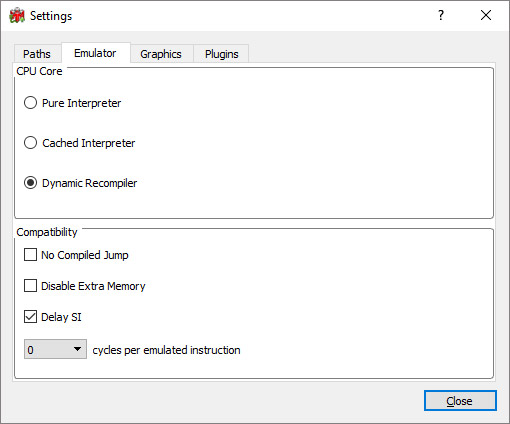
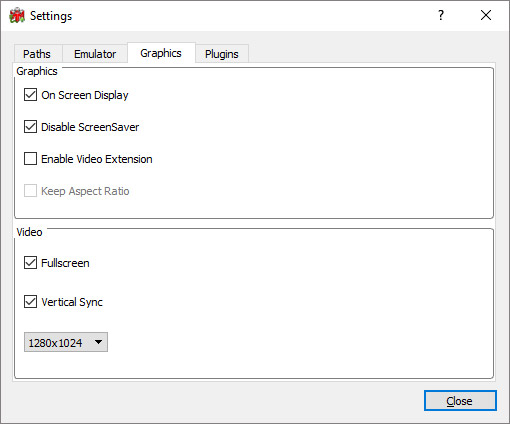
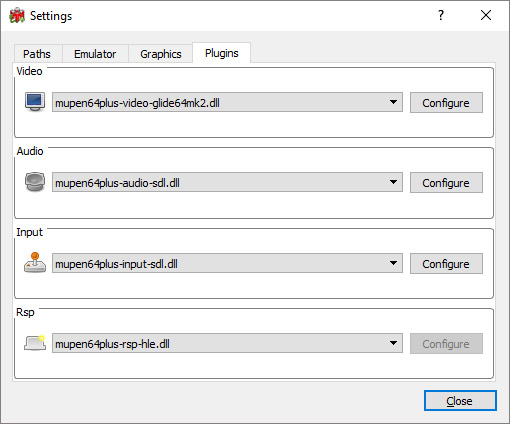
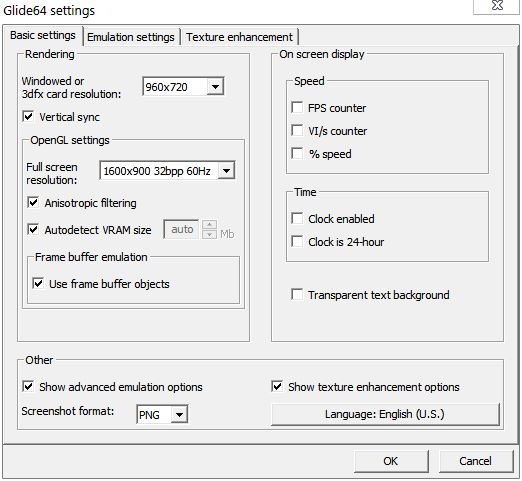
Use the Glide64 or Rice graphics plugin.
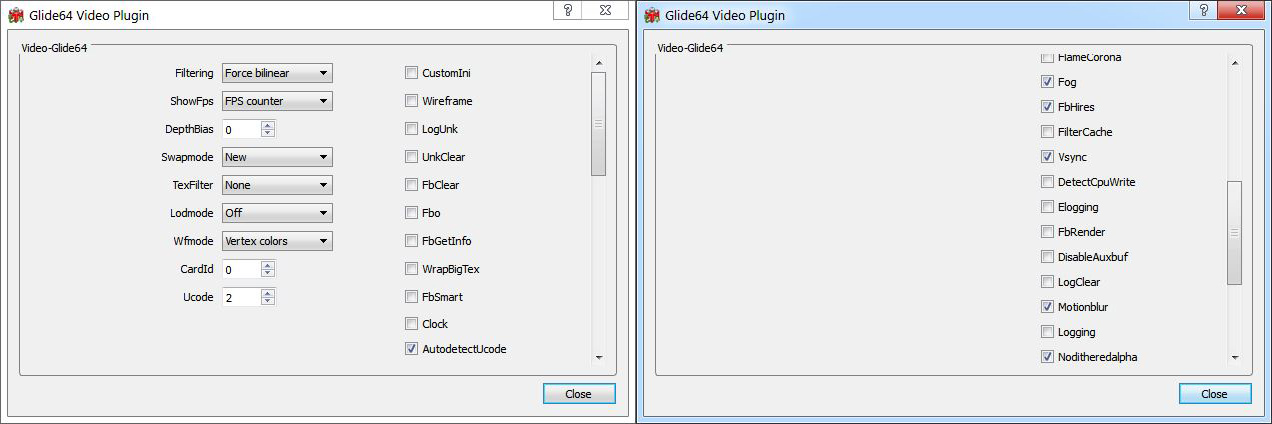
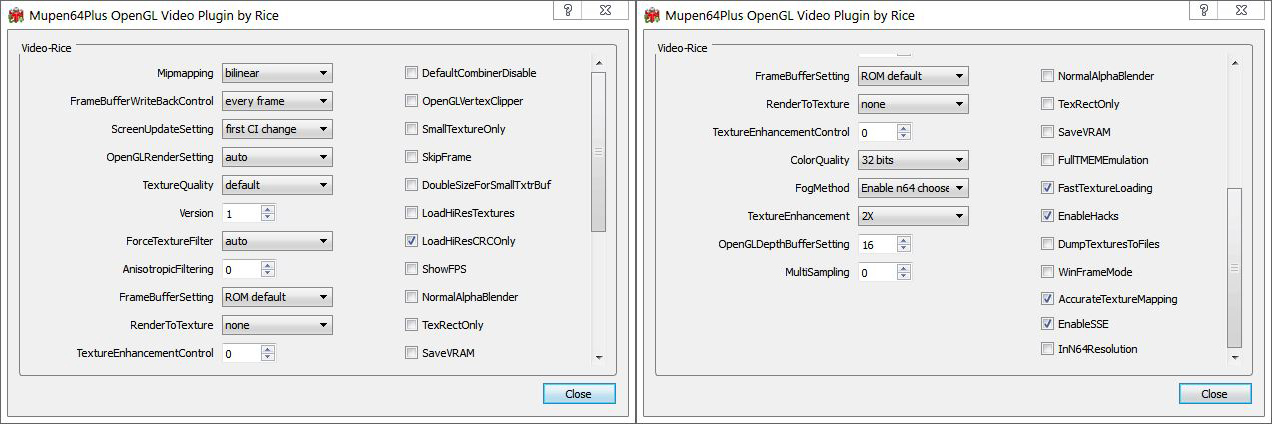
File Locations
mupen64plus.cfg and saves are located in C:\Users\{USER}\AppData\Roaming\Mupen64Plus
Other configuration files are located in the M64Py install folder.
Controller Config:
- Go to Settings → Plugins → Configure Input
- Choose Device, Keyboard or Joystick
- Set mode to Fully Automatic
For DualShock 4 & Other Unsupported Controllers
- First, see How to Setup DualShock 4 to PC
- The Plugin controller interface sometimes doesn't save your input settings. You will need to make changes manually.
- Using a text editor, such as Notepad++, open InputAutoCfg.ini located in the M64Py install folder.
- Copy and paste this config into the file and save:
(For other unsupported controllers, change the bracket [ ] name and button layout to match yours.)
RetroArch

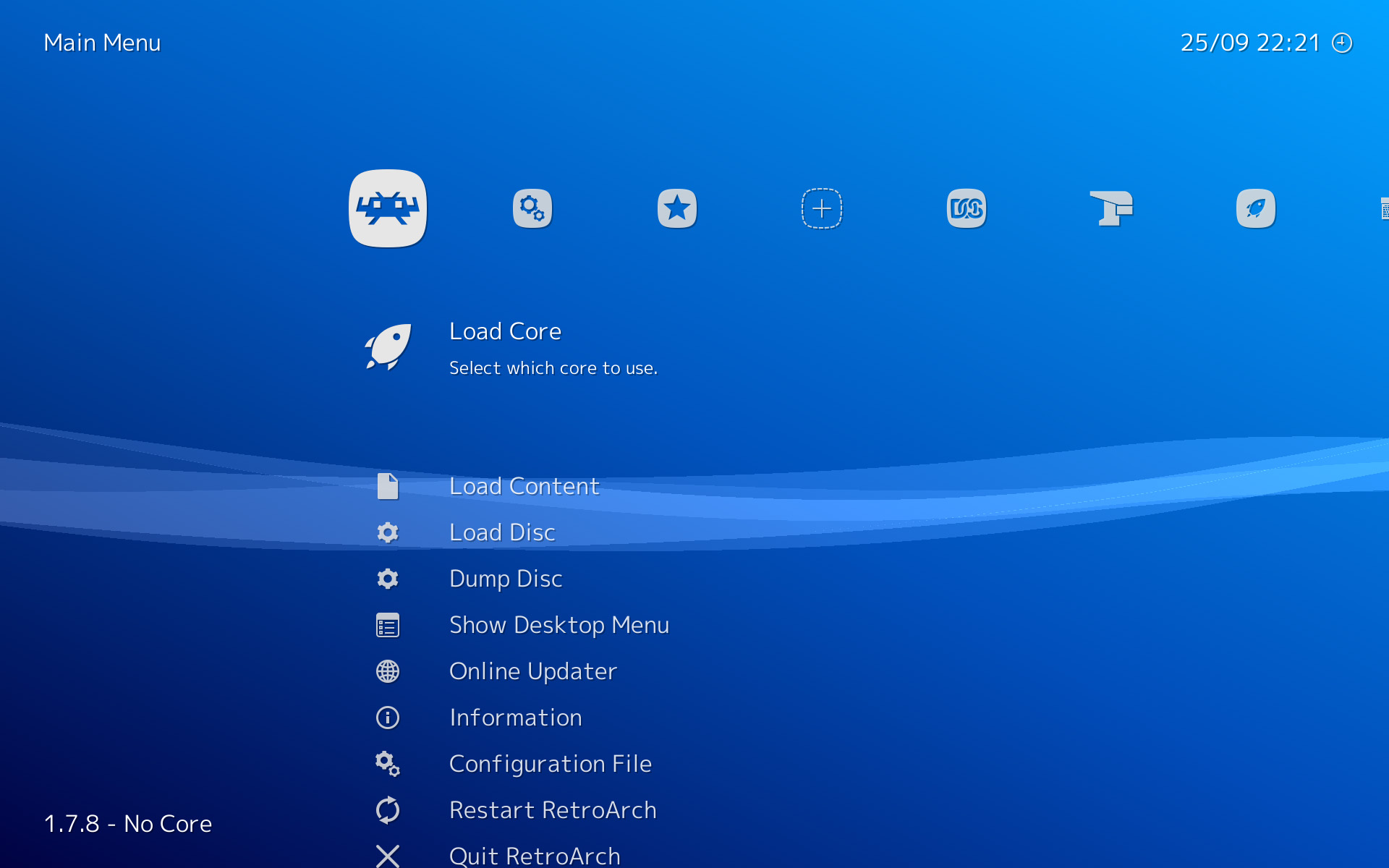
- See How to Setup RetroArch.
- See Mupen64Plus Options on the Libretro wiki.
- In Core Options set:
CPU Core = "cached_interpreter"
mupen64-gfxplugin = "glide64"
mupen64-filtering = "N64 3-point"
- In Core Options set:
Controllers
- Navigate to Settings → Input Options
- Change User 1 Device Index to your controller
- Map your inputs with User 1 Bind All
Performance Settings
For slower computers or integrated graphics:
- Set CPU Core to Dynamic Compiler.
- Lower the resolution.
- Remove any Texture Enhancements, Lodmode, and Motionblur.
- Set Texture Filter to Bilinear or lower.
Project64
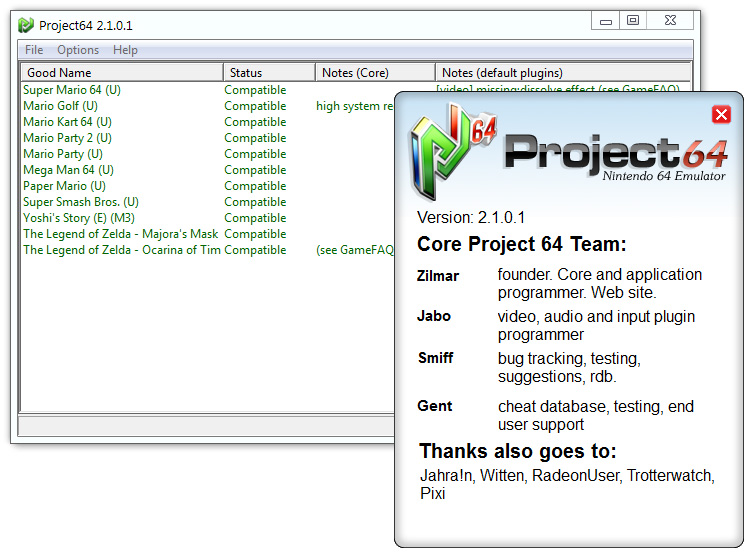
The emulator uses a wide range of plugins that can be downloaded separately and placed in the plugins folder.
Download Project64 2.1 (Official)
Download Project64 2.1 (with all plugins)
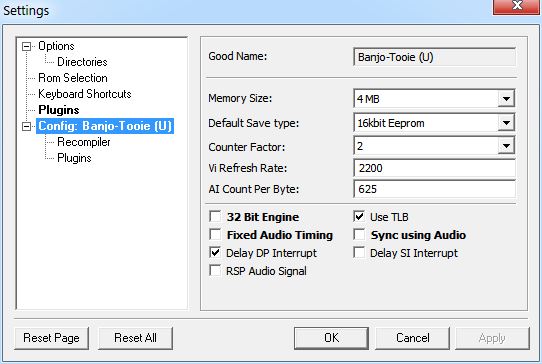
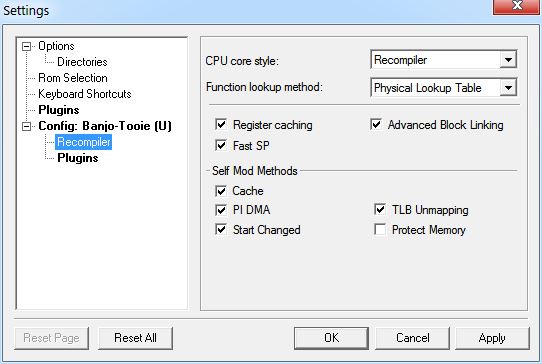
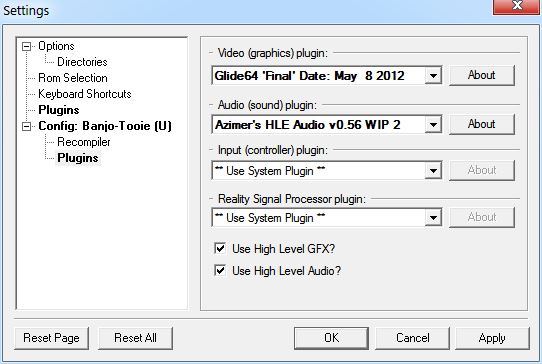
Configuration Per Game
List of Settings for each game: http://pastebin.com/s4sypfe0
You can set each game to have its own specialized configuration, useful for fixing game-breaking bugs.
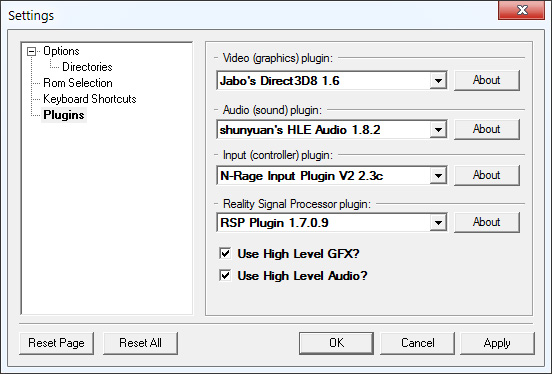
While a game is running, go to Options → Settings
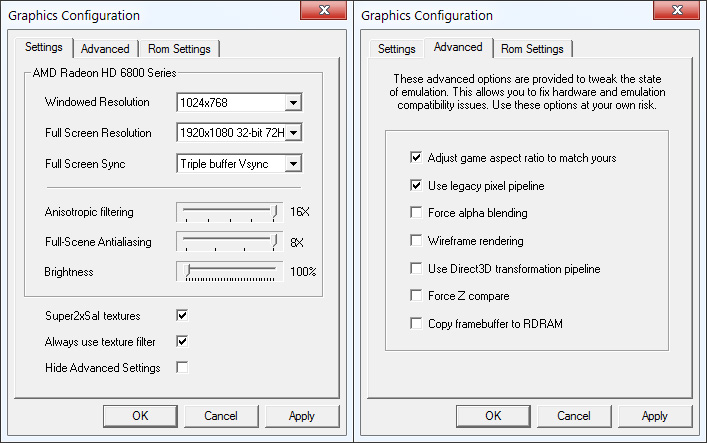
Example:
HD
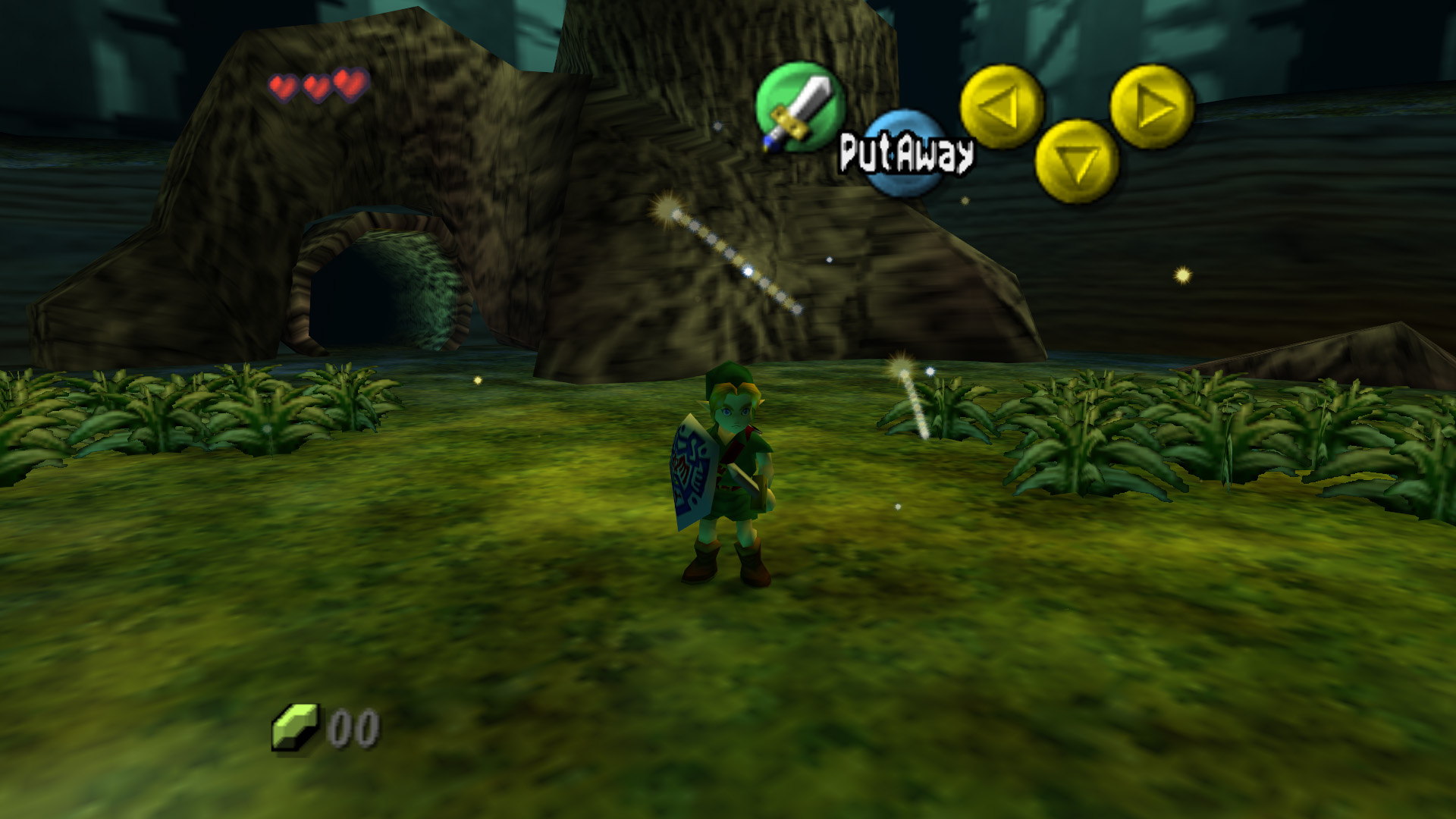
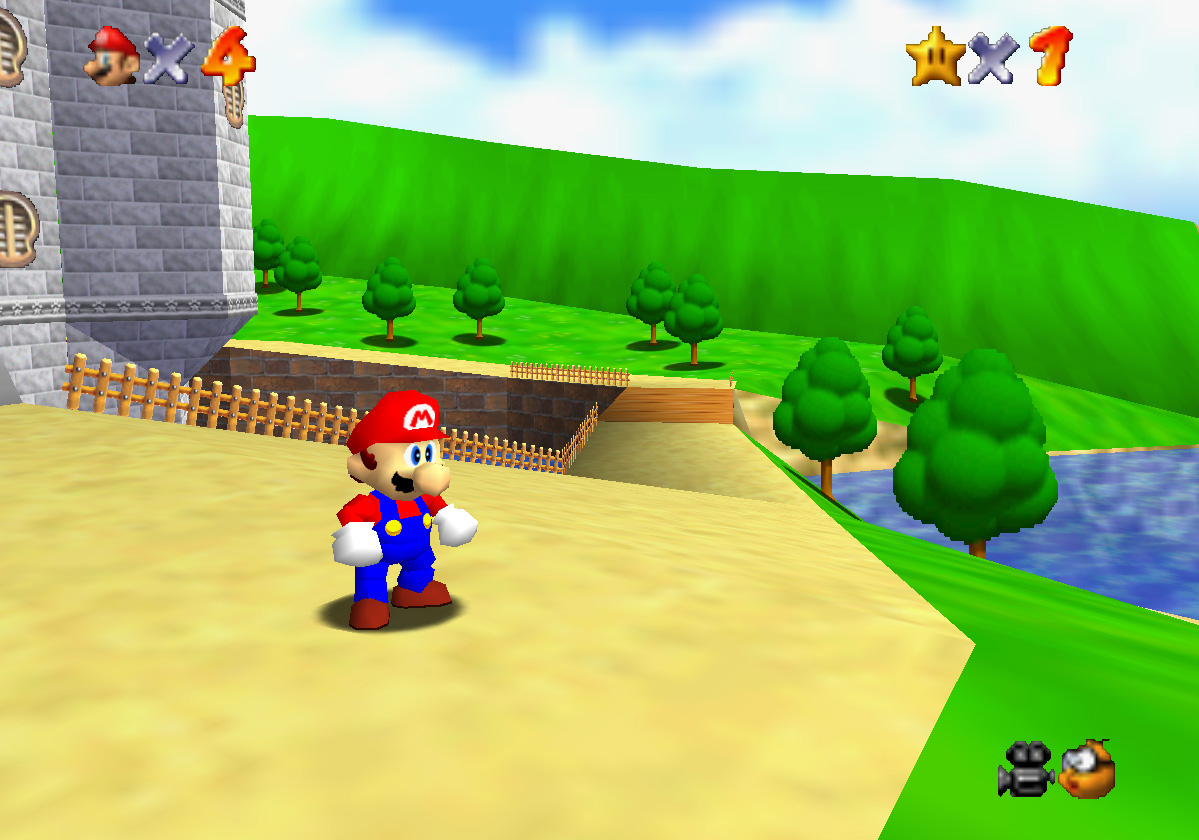
This will require the use of Project64 that can use Jabo's D3D8 1.6.1 plugin for 16:9 widescreen without stretching.
Not all games will be able to play with this setting, as they will glitch or not work.
Accuracy
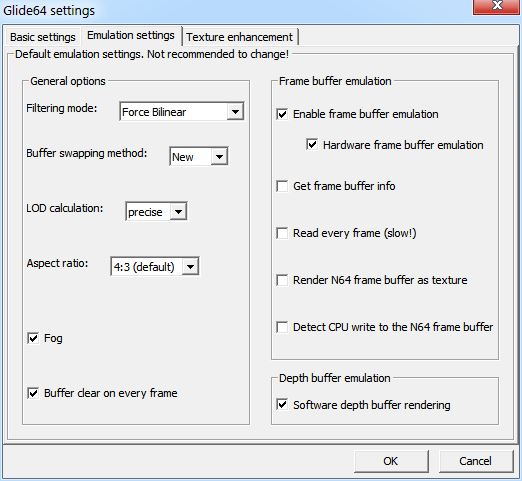
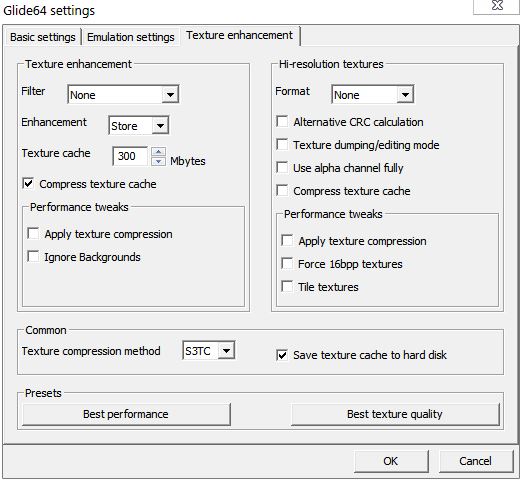
Glide64 Plugin
Glide64 is extremely compatible, emulating many game's graphics flawlessly and faithfully.
HatCat/Angrylion's Pixel-Accurate Plugin
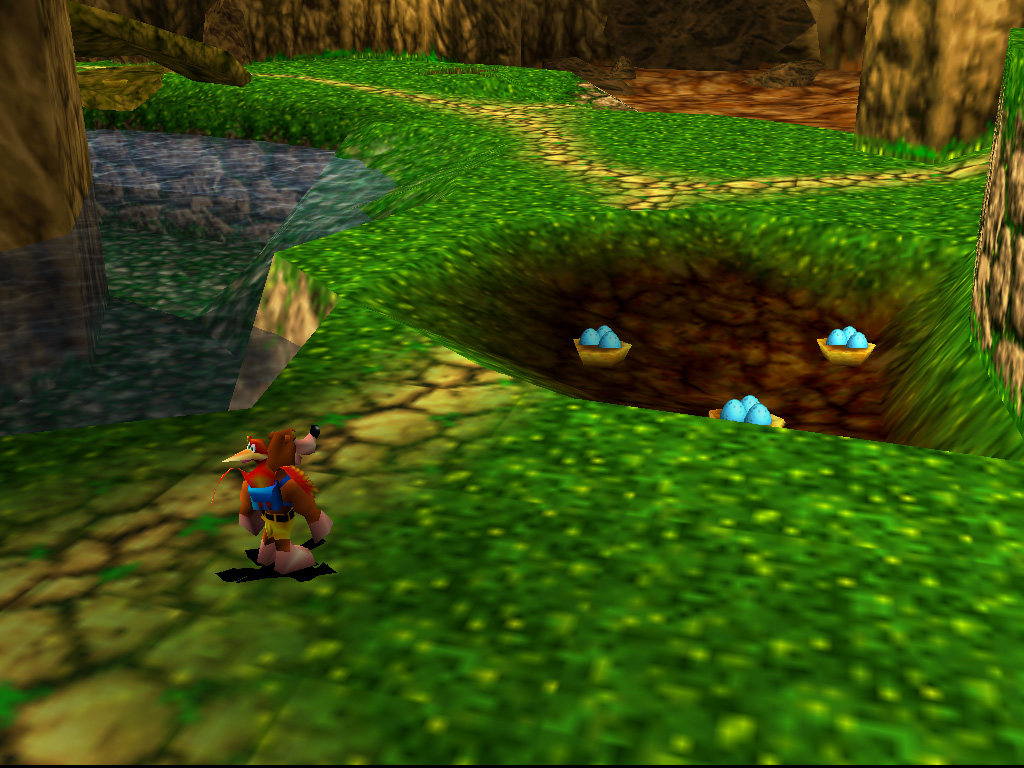
For use with Project64. It is the most accurate N64 renderer. It Requires a very powerful computer to use without being slow.
It should be used with HatCat's RSP. This will display how the N64 graphics really looked if played on a CRT monitor (standard definition at 4:3 aspect ratio).
Configuration
- Uncheck "Use High Level GFX"
- Change Memory Size to 8MB for games that use the 4MB expansion pak
File Placement
- Video
rdp_conf.bin in Project64 2.1 root folder.
mylittle-nocomment.dll in Project64 2.1\Plugin\GFX\ - RSP
rsp_sse2.dll and rsp.dll in Project64 2.1\Plugin\RSP\
sp_cfgui.exe and rsp_conf.cfg in Project64 2.1 root folder.
Performance
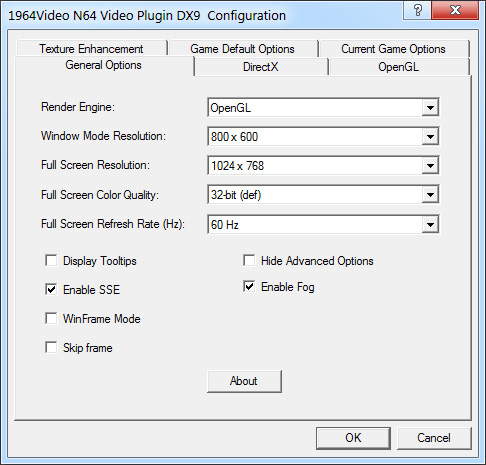
If you are getting choppy framerate and audio, or trying to play with integrated graphics, try using this plugin configuration:
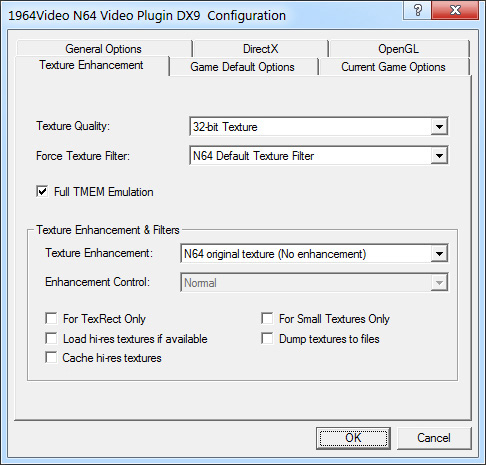
- 1964 Video DX9 Plugin
- Azimer's HLE Audio v0.60 WIP 2
- Default RSP
Issues
- Game not working correctly
Check the Project64 Game Settings page. - Can't get widescreen without stretching
Only Jabo's D3D8 1.6+ can do this, all others use 4:3 or 16:9 with stretching. - No Anti-Aliasing
Use your graphics card's control panel to force AA and Vsync on Project64.exe
Scanlines
See How to Setup RetroArch and the Scanline Shaders section.
Downloads & Plugins
Emulators
Video
- HatCat/Angrylion's Pixel-Accurate (5)
- Glide64 Napalm 1.22 (Manual Download)
Audio
- Azimer's HLE Audio (Use for High Level Audio)
- Shunyuan's HLE Audio (Under constant development, use for High Level Audio)
RSP
- HatCat's RSP (6)
Input
- N-Rage - Keyboard and Controllers
Controllers
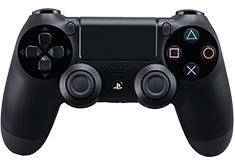
DualShock 4
Should be plug and play and won't require DS4Tool. Recommend using the N-Rage plugin.
Buy
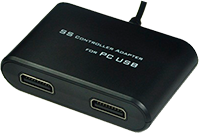
See more PC Gamepads.