SSF
SSF is a Windows-based Sega Saturn emulator. Read more info at SegaRetro.org.
Setup
Region Code
To play Japanese and PAL games you can use any BIOS, but you must set the Area Code in Options.
Virtual Drive Software
SSF requires a virtual drive to read ISO files.
Note: WinCDEmu and MagicDisc don't work with SSF.
ImgDrive
Does not work with .cue/.bin or .cue/.iso files.
Works with .mds/.mdf & .ccd/.img/.sub files.
Daemon Tools Lite
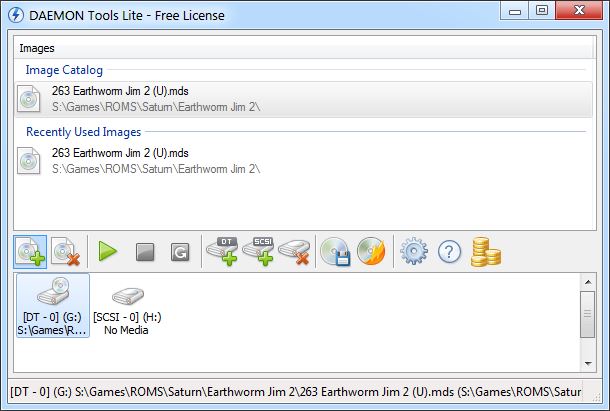
- Be Aware: May contain a form of spyware.[1] Avoid installing the included toolbars and bloatware by pressing Skip.
- Block the application and IP addresses 212.117.184.51 and 212.117.185.149 with Firewall[2]
Alcohol 52% Free Edition
- Be Aware: The installer forces you to install software called Smart File Advisor, which you can't uninstall separately. However, there are workarounds below.
If you are getting a signed driver error:
- Run command prompt as administrator.
- Paste the following:
- Bcdedit.exe /set nointegritychecks ON
- Reinstall and run Alcohol 52%
- If all is working, re-enable Digital Signature
- Bcdedit.exe /set nointegritychecks OFF
To remove Smart File Advisor
- Exit Alcohol 52%
- End task Smart File Advisor
- Delete the Smart File Advisor folder in Program Files
Filters
A pack of 51 filters for smoother graphics.
- Download SSF Filters v0.1.5.4
- Extract to SSF folder
- Filter menu option will appear as
- Works with SSF Ver0.12 beta R4. May not work with SSF_TestVer.
Controls
Keyboard
A,B,C = Z,X,C on keyboard
X,Y,Z = S,D,F on keyboard
Left, Right Trigger = A,G on keyboard
Start = Enter on keyboard
F1 = To open the CD-ROM drive
F2 = To close the CD-ROM drive
F3 = Reset the Saturn
F9 = To take a snapshot of the SSF screen
F11 = Window mode
F12 = Fullscreen mode
Q = Field skip +1
W = Field skip -1
Esc = Close SSF
Controllers
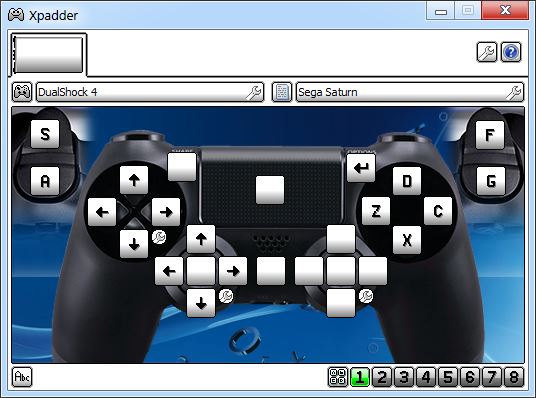
If your controller isn't detected by SSF, an easy way around this is to use a free program called Xpadder. If Redefine Keys is blank or get stuck press Alt+F4.
DualShock 4
DualShock 4 doesn't seem to be detected by SSF.
Download a pre-configured DualShock 4 Saturn Profile for Xpadder.
Shortcuts
To launch from a Windows Shorcut, you will need to create a .bat file that will launch SSF and mount the game in Daemon Tools at the same time:
- Make sure SSF's CD Drive is set to use Daemon Tool's Virtual Drive
- Make sure correct Area Code is set in SSF
- Open Notepad
- Paste the following (using your own paths):
@echo off
cd "C:\Program Files (x86)\Daemon Tools Lite"
start DTLite.exe
"C:\Program Files (x86)\Daemon Tools Lite\DTLite.exe" -mount 0, "C:\{Path to Your Game.cue/.mds}"

cd "C:\{Path to SSF Folder}"
start SSF.exe

exit- Save file as the name of your game, with the .bat extension.
- Create a Shortcut from this .bat file and use to easily launch game.
Troubleshooting
- SSF won't maximize but shows up on the taskbar
Delete SSF.ini. Next time you run SSF, it will regenerate the file. - Drive Empty
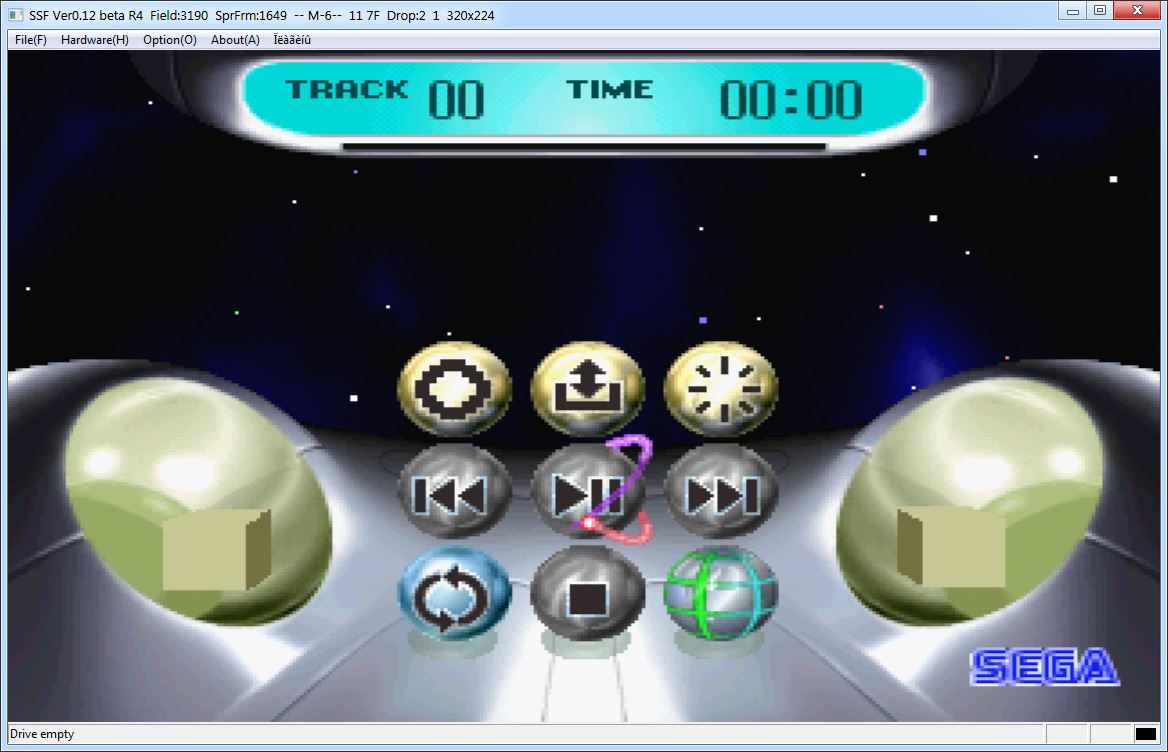
Use Daemon Tools Lite, set the drive in SSF the drive under Options. Restart program until it works. - Redefine Keys is blank or get stuck
Press Alt+F4 to exit. Use Xpadder.