Security
Antivirus
Antivirus ratings can be found at av-test.org
- Avast (free)
- Bitdefender (free edition)
- Eset
- Kaspersky
- Malwarebytes
Maintenance
-
Speccy
- System information and temperature monitor.
- If system temperatures are too high, check the fans and vents for dust, clean with compressed air.
-
CCleaner
- Junk cleaner and registry repair.
-
Defraggler
- Defrag hard drive (do not defrag SSD).
-
WinDirStat
- Hard drive usage visualizer and cleanup.
- Use this to analyze disk space if running low.
-
Crystal Disk Info
- Hard Drive / SSD health monitor.
- Check the disk for bad sectors and replace if in critical condition.
Productivity
- LibreOffice
-
- Free, open-source office suite and compatible alternative to Microsoft Office.
- Krita
-
- Free Digital painting application.
- Lightworks
-
- Free and Paid video editor supporting resolutions up to 4K.
- Thunderbird
-
- Cross-platform email, news, and chat client.
- Visual Studio Code
-
- Text editor redefined and optimized for building and debugging modern web and cloud applications.
- 7-Zip
-
- Archive compression utility that supports multiple formats.
See more Windows Applications.
Performance
Startup Programs
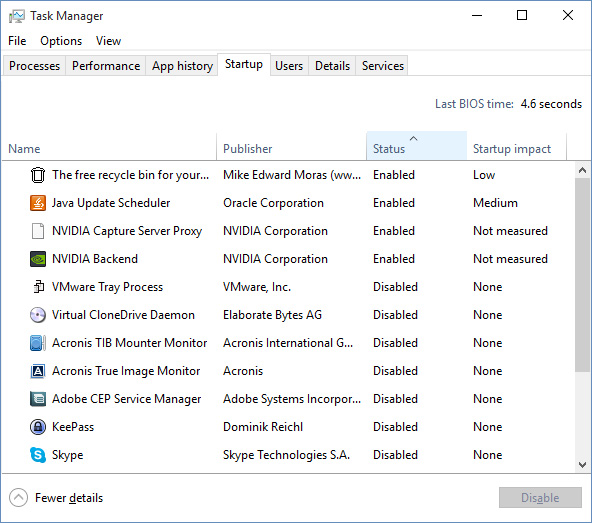
Disable unwanted startup programs to free system resources and speed up computer.
Windows Vista & 7
- Launch the System Configuration by going to the Start Menu → type msconfig in the search.
- Uncheck the programs you do not want running at startup.
Windows 8 & 10
- Press Ctrl+Shift+Esc to bring up the Task Manager → Click the Startup tab.
- Right click and Disable programs you do not want running at startup.
Visual Effects
- Go to Start Menu → type Appearance and Performance
- In the Performance Options window you can disable unneeded effects.
Hibernation
Hiberfil.sys can use several GB of hard disk space. If not needed it can be removed.
- Hiberfil.sys is a hidden file located at C:\hiberfil.sys
- Open Command Prompt as Administrator
- Enter: powercfg -h off
- Restart the PC
- The file should now be automatically removed. If it remains, it can be deleted manually.
Virtual Memory
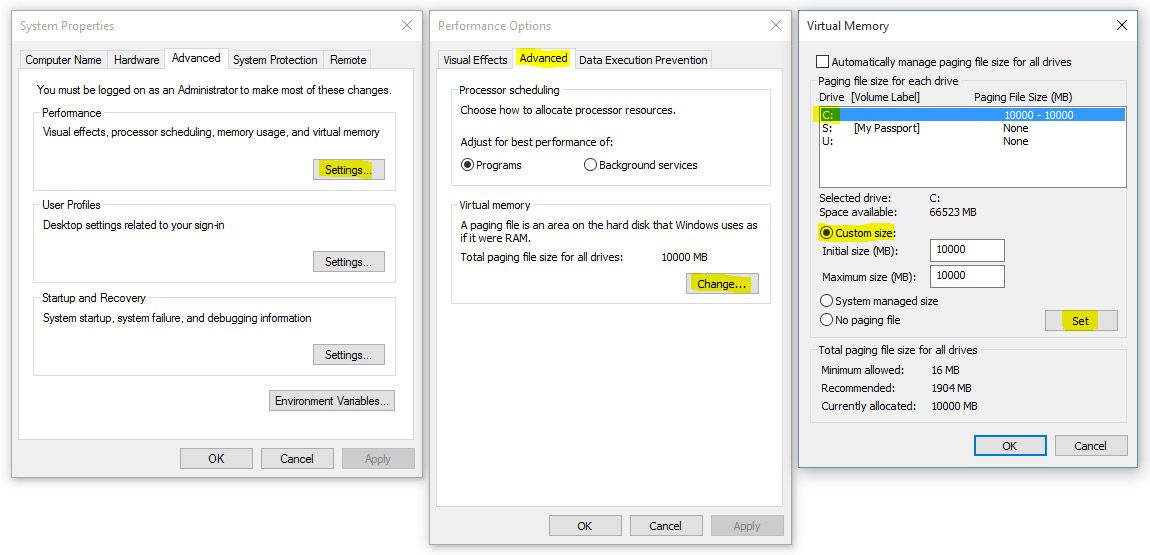
The Pagefile is the reserved portion of a hard disk that is used as an extension of RAM. Windows sets the initial minimum size of the Pagefile equal to the amount of RAM installed on your computer. It can be manually set higher if too low. Do not disable the Pagefile.
- Click the Start Button → Right Click My Computer or This PC → Go to Properties
- Go to Advanced System Settings → Under Performance click Settings
- In the Performance Options window click the Advanced tab
- Click Change Virtual Memory
- Choose your C: Drive → Click Custom Size
- Set, in Megabytes, Initial and Maximum size to 1.5 times the amount of your computer's RAM.
- (e.g. 1GB RAM = 1000MB)
- (e.g. 1.5 x 4GB RAM = 6000MB)
- Click Set → Apply → Ok → Restart PC to take effect
Power Options
In the Control Panel, under System and Security, find Power Options.
Click Change plan settings → Click Change advanced power settings
You can set to High perfomance or set options individually
Note: High Performance will be harder on your CPU and use more power.
Network
DNS
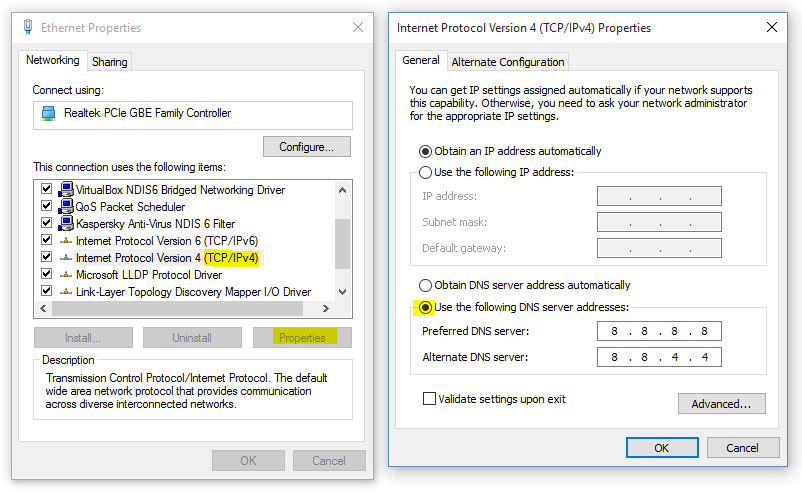
Third-party DNS servers can be faster than your Internet Service Providor's depending on your location. Try Google's Public DNS, 8.8.8.8 and 8.8.4.4.
- Go to Control Panel → Network → Network and Sharing Center → Change Adapter Settings
- Right click on your Local Area or Wireless connection and go to Properties.
- Scroll down to IPv4 and click Properties.
- Choose "Use the following DNS server addresses" and enter the address.
Telemery
Removing Windows Data Collection
Windows 7 & 8
Windows Update
- Remove the following updates (if installed already):
- Go to Control Panel → Uninstall a program → View installed updates
- KB3068708 Update for customer experience and diagnostic telemetry.
- KB3022345 Update for customer experience and diagnostic telemetry.
- KB2952664 Compatibility update for upgrading Windows 7.
- KB2990214 Update that enables you to upgrade from Windows 7 to a later version of Windows.
- KB3035583 Update installs Get Windows 10 app in Windows 8.1 and Windows 7 SP1.
- KB971033 Description of the update for Windows Activation Technologies.
- KB3021917 Update to Windows 7 SP1 for performance improvements.
- KB3044374 Update that enables you to upgrade from Windows 8.1 to a later version of Windows.
Action Center
- Go to Control Panel → Action Center → Change Action Center Settings
- Click Customer Experience Improvement Program settings
- Choose No
Command Prompt
- Open Command Prompt as Administrator
- Enter:
sc stop Diagtrack
sc delete Diagtrack
sc delete dmwappushservice
Tasks
- Go to Start Menu → Type task scheduler
- Disable under:
-
Microsoft → Windows → Application Experience
- AITAgent
- ProgramDataUpdater
- Customer Experience Improvement Program
- Under Disk Diagnostic, disable only Microsoft-Windows-DiskDiagnosticDataCollector
- Maintenance → WinSAT
- Media Center → Status column
-
Microsoft → Windows → Application Experience
Services
- Go to Start Menu → Type services
- Disable Remote Registry
Windows 10
To fully disable Telemetry you will need Windows 10 Enterprise Edition.
Install O&O ShutUp 10 and apply recommended settings.
Privacy Settings
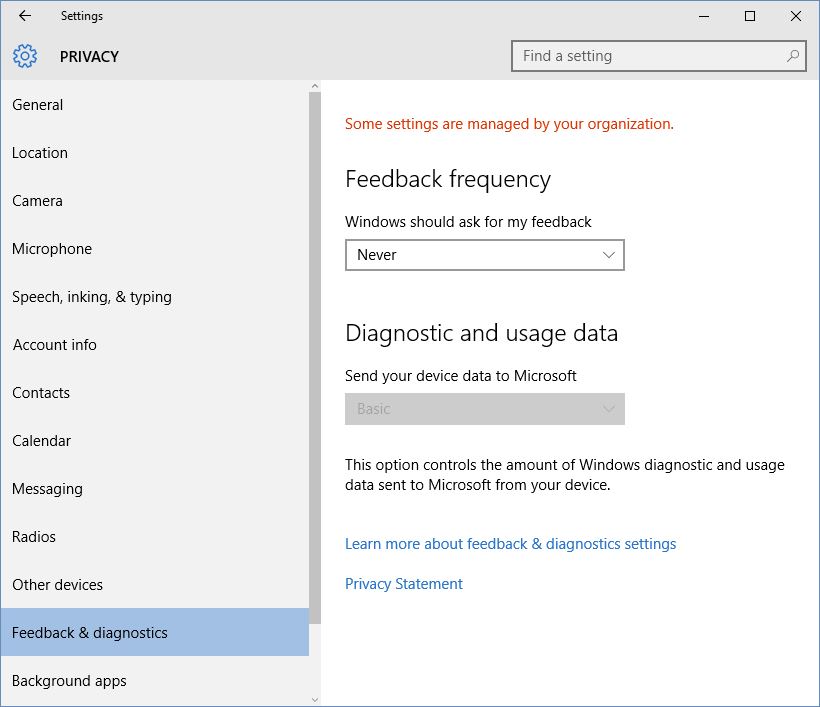
- Go to Start Menu → Settings → Privacy
- Disable everything that can track data
- Set Feedback & diagnostics to Never
Command Pompt
- Open Command Prompt as Administrator
- Enter:
sc stop Diagtrack
sc delete Diagtrack
sc delete dmwappushservice
Registry
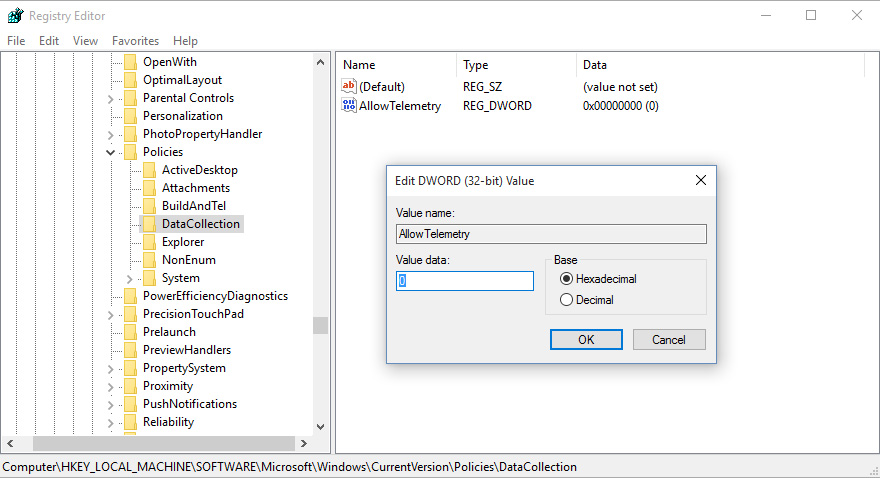
- Go to Start Menu → Type regedit
- Go to the registry key:
- HKEY_LOCAL_MACHINE\SOFTWARE\Policies\Microsoft\Windows\DataCollection
- Create a new a 32-bit DWORD value named AllowTelemetry and set it to 0.
- Go to C:\Windows\System32\Drivers\Etc\
- Open the hosts file with a text editor
- Add the IP's from this list http://pastebin.com/AbTqLqwY
Group Policy
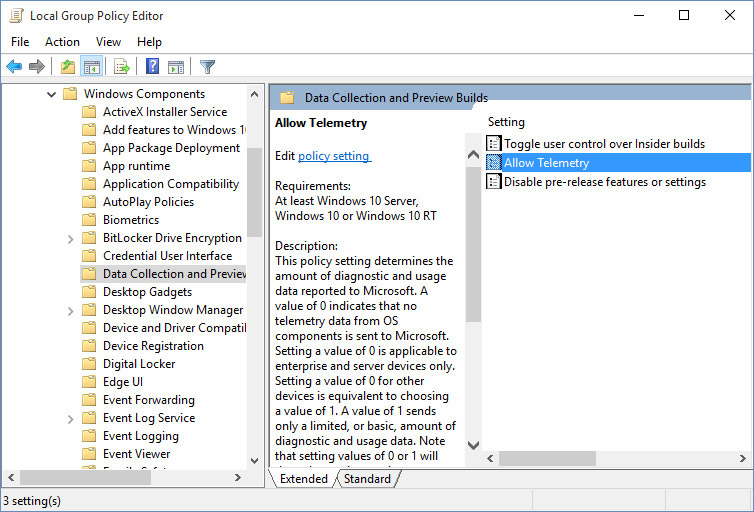
- Go to Start Menu → Type gpedit
- Go to Computer Configuration → Administrative Templates → Windows Components → Data Collection and Preview Builds
- Double Click Allow Telemetry
- If you are on Windows 10 Home or Pro set to Disabled
- If you are on Windows 10 Enterprise set to Enabled → Options: 0 Off [Enterprise Only]
- Under Windows Components, go to One Drive
- Double click Prevent the usage of OneDrive for file storage → Set to Enabled
- Under Windows Components, go to Windows Defender
- Double click Turn off Windows Defender → Set to Enabled
Tasks
- Go to Start Menu → Type task scheduler
- Disable everything under Microsoft → Windows →
- Application Experience
- Autochk
- Customer Experience Improvement Program
- Under Disk Diagnostic, disable only Microsoft-Windows-DiskDiagnosticDataCollector
- Maintenance
Services
- Go to Start Menu → Type services
- Disable Remote Registry
Cortana
- Go to Start Menu → Type Cortana & Search Settings
- Turn off Cortana
- The follwing will also disable Start Menu search:
- Download and install Unlocker
- Navigate to the following folder:
- C:\Windows\SystemApps\Microsoft.Windows.Cortana_cw5n1h2txyewy
- Right click "SearchUI.exe" and select "Unlocker"
- Under the action menu, select "Rename"
- Give it a new name such as "Disabled.SearchUI.exe"
- Restart PC