
PCSX2
System Requirements
- Windows Vista / Windows 7 32-bit/64-bit
- CPU: Intel Core 2 Duo @ 3.2 GHz or better
- GPU: 8600 GT or better
- 1GB RAM (2GB if on Vista / Windows 7)
Downloads
Setup
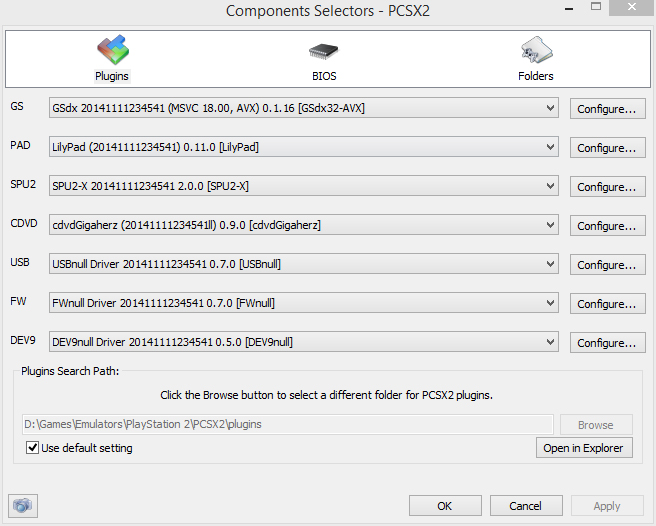
Guide
Widescreen Game Patches
Download and unzip to the cheats directory. In PCSX2, go to System → Enable Widescreen Patches.
Configurations Per Game
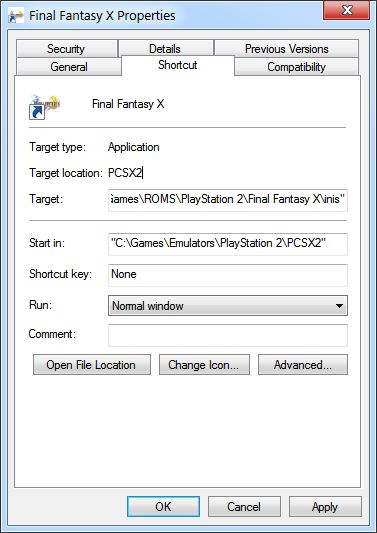
You will need to create a Windows shortcut that points to the game iso and its ini folder.
Consult the Official PCSX2 Wiki for the best game settings.
- Go to your PCSX2 installation folder (If in Program Files, may need to run as Admin).
- In the ini folder, create folders for each game name.
- Create a New Windows Shortcut, give it the name of your game.
- Right click it → go to Properties → paste the following in the Target line (using your own paths and file names).
Example: "C:\Program Files\PCSX2\pcsx2.exe" "C:\Users\glytch\Games\Final Fantasy X.iso" --cfgpath="C:\Program Files\PCSX2\inis\Final Fantasy X\" - Open the Shortcut you just created and it will launch your game.
- To make configuration changes for that game, go to Config on the Toolbar
- All changes you make will be saved to that game's inis folder and will be used every time you launch from that Shortcut.
- Do this for every game.
Controller
Use the LilyPad plugin.
Native DualShock 3 & 4 support.
Enable XInput if you are using something like DS4Tool or an Xbox controller.
Troubleshooting
- MSVCr100.dll is missing
Make sure to have Microsoft Visual C++ 2005, 2008, 2010, 2012, 2013 in both x64 and x86 installed.
You can find the download links on the Windows Software page, underPlugins & Runtimes.
Controllers
Buy



See more PC Gamepads.